Translate a livestream on iPhone when subtitles are missing
For a live stream in another language, first check what the player already provides. If it has no useful caption track, you need a supported way to recognise the speech and translate it. A microphone, a subtitle window and the player’s own captions use different paths.
Check the actual stream before choosing another tool
Open the stream’s caption and language controls, if offered, and inspect the available options. Check that the words you see belong to the speech rather than the chat, video title or text drawn into the picture. A caption track can be in the original language without providing a translation.
Live does not automatically mean there are no captions. YouTube documents automatic captions for eligible English live streams, with rollout and normal-latency conditions. It also says that the captions generated for the replay can differ from those shown live. Check this stream and viewing session rather than assuming all live broadcasts behave alike.
Distinguish transcription from translated subtitles
Apple’s Live Captions transcribes spoken audio. Its controls distinguish iPhone audio from nearby speech captured through the microphone. Seeing a transcript does not establish that another language has been selected or that the text has been translated.
Apple separately documents generated and translated subtitles in supported video apps on compatible devices. Its iOS 27 guide gives language and model requirements, including English generated subtitles and translated viewing when English subtitles are available. Check the current requirements and the options in the actual player; these features are not a universal subtitle translator for every stream.
Choose an audio path that the selected app supports
For a same-phone subtitle workflow, the tool must explicitly support obtaining the playing audio and showing the result while you watch. Hono Translate’s publisher, for example, describes a system-confirmed sharing flow and a floating subtitle window. That is a published workflow description, not our verification that every app or protected video will work.
A nearby-microphone method is different: it listens to sound in the room. Headphones or a muted loudspeaker can change what reaches that microphone. Confirm the intended input before changing volume or audio processing. A connected indicator alone does not prove that the translator is receiving the stream.
If the chosen player does not supply audio through the tool’s supported method, return to its provided caption, replay or permitted transcript options. A translation app should not be treated as a way to remove a player’s restrictions.
Prepare the listening language as well as the reading language
Select the language being spoken and the language you want to read. Test an ordinary spoken sentence: a downloaded target-language translation resource does not by itself establish that the app can recognise the source speech.
For an on-device workflow, finish the required recognition and translation preparation before relying on it. Keep the stream’s network needs separate: local subtitle processing does not make a live internet broadcast available offline. For an online translator, check the selected provider and the content being sent before starting a private stream.
Diagnose one missing stage at a time
Use a short, clear spoken passage first. The following is a proposed check, not a claim that we tested these apps on every platform.
- Confirm the stream is playing the expected spoken language. Music, chat messages or a static title are not the speech you want to translate.
- Confirm which input the subtitle tool has selected: supported app audio or a nearby microphone. Complete the tool’s actual permission flow.
- Look for a source transcript or input status if the tool exposes one. If the recognised words are already wrong, changing the target language will not repair them.
- If the source is correct but the result is in the wrong language, check the translation direction and display choice.
- If translation exists but you cannot see it while watching, inspect the app’s window controls separately from audio capture. Retest after changing apps, screen orientation or audio devices.
Check timing, corrections and the option to replay
A fast first word is not the same as a completed translation. Try a sentence with a correction, such as “The meeting is at nine — sorry, at ten.” Check which time remains in the readable result. With a language you cannot check yourself, ask a proficient speaker to review an ordinary sample.
Do not assume all live streams prevent pausing or rewinding. YouTube documents DVR for pause and rewind when enabled, subject to limits. If the player offers that control, use it to revisit an unclear passage and remember that you are then watching behind the live point. Where no replay is available, mark a missed phrase as missing rather than guessing it from a fluent later line.
A readable overlay is not automatically an exported subtitle file
Decide whether you only need to follow the stream, keep a personal text record or publish subtitles with timing. A floating window does not establish that a tool exports a timed subtitle file, preserves every line or creates a translated soundtrack.
Check the output and permissions appropriate to the material before saving or sharing it. If the publisher provides an authorised replay or transcript later, compare uncertain names and numbers with that source. The recording and subtitle-production workflows are covered separately in the audio/video guide.
Where LingoVela fits
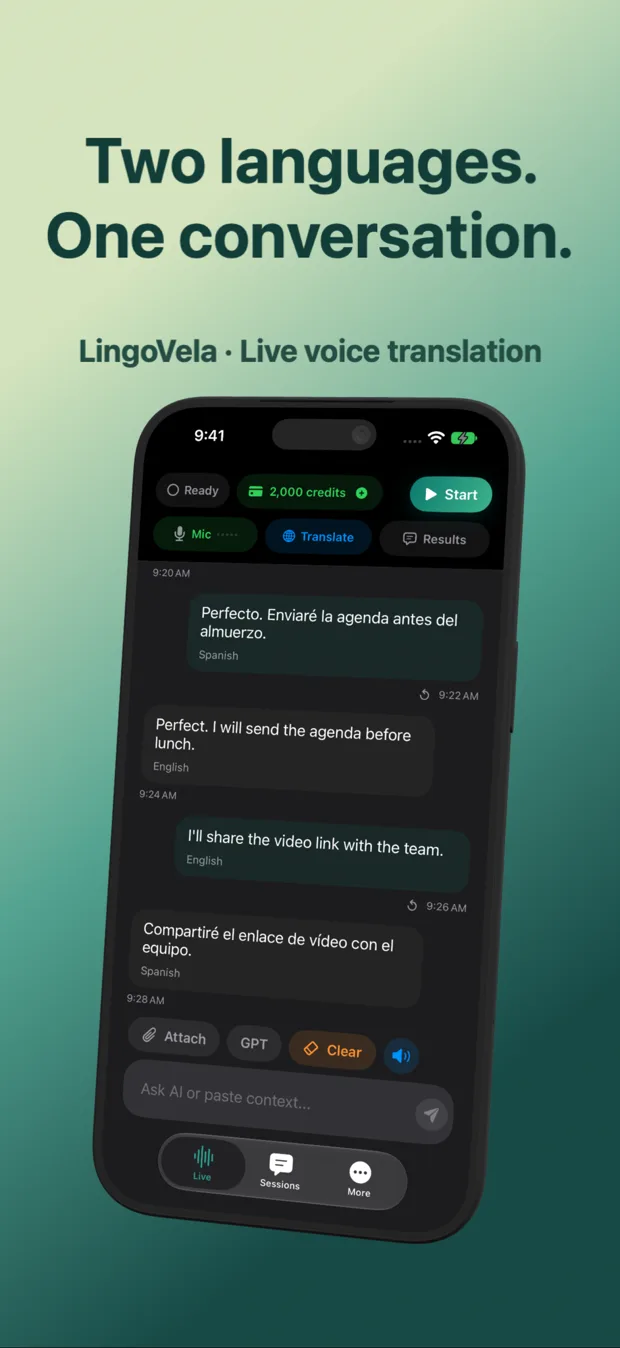
We publish this guide as LingoVela’s developer and have a commercial interest in the app. LingoVela is a translation app for supported conversations, text and compatible attachments. It is not advertised here as a floating subtitle overlay, an internal audio capture tool for another app or a live-stream platform integration.
All LingoVela modes require an active subscription. On Device needs compatible prepared resources and uses no AI credits. OpenAI · Online and Private Cloud Compute require internet and credits, with their relevant device and provider requirements. Those modes do not by themselves add a new media-capture path.
For a permitted transcript or compatible recording, check the supported input with a short sample. For subtitles over another app, choose and test a tool that explicitly provides that workflow. This guide does not establish a speed, accuracy or privacy ranking of the products mentioned.
Can a livestream already have captions?
Yes. Availability depends on the service, creator, language and stream settings. YouTube documents live automatic captioning under specific conditions. Check the actual player before assuming no caption track exists.
Does iPhone Live Captions translate the stream?
Live Captions provides transcription. Apple separately documents supported-app generated and translated subtitle features with device and language requirements. Check which feature and language options you are using.
Can downloaded models translate an internet stream without a connection?
They may support local recognition and translation in an app that provides that workflow, but the broadcast itself still needs its normal connection. Prepare and test each stage separately.
Does LingoVela show floating translated subtitles over YouTube or TikTok?
That overlay and internal-audio capture workflow is not advertised here. Use LingoVela for its supported conversation, text and compatible attachment inputs; use a tool explicitly supporting an overlay if that is the output you need.