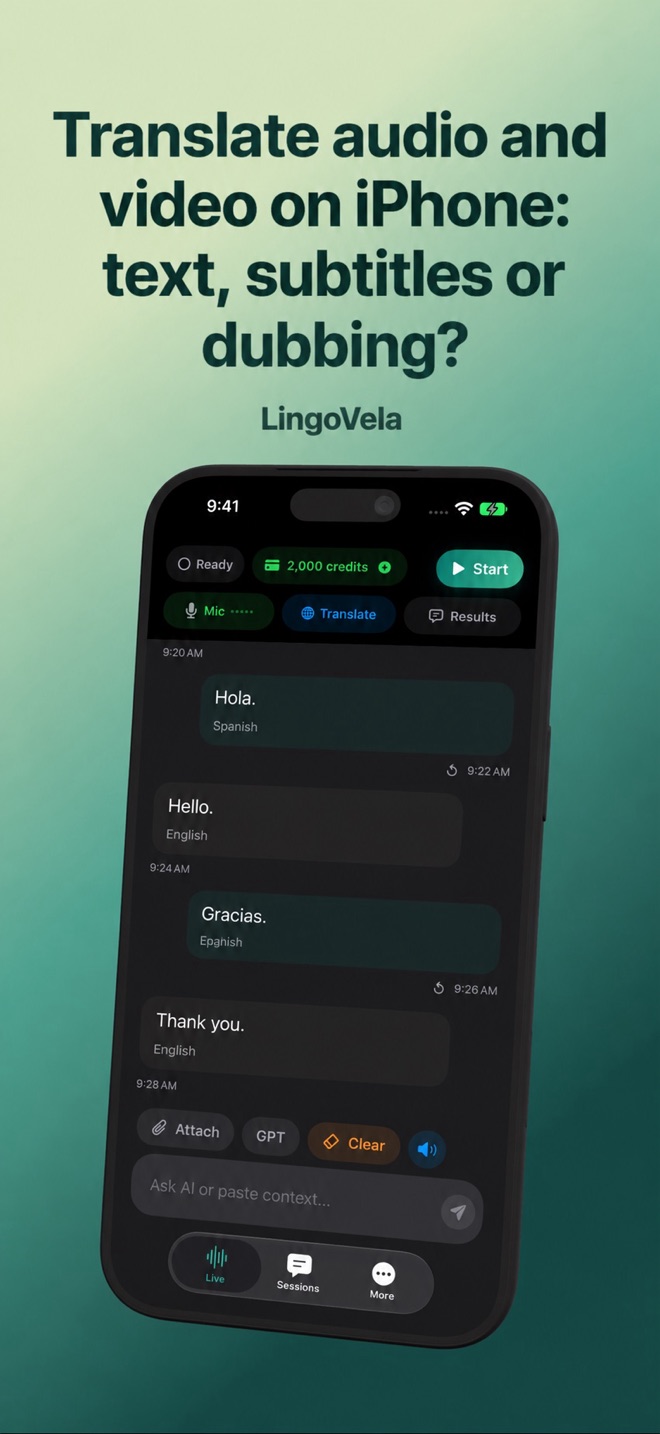
Translate audio and video on iPhone: text, subtitles or dubbing?
First decide what you need to receive: words to understand, subtitles that follow the video or a new spoken soundtrack. Those are separate deliverables.
Match the source to the result
A file you possess, captions in a player, text burned into a picture and a live call provide different inputs. Check the actual source before choosing a translator.
- For understanding, a checked translated transcript may be sufficient. You do not necessarily need a new video file.
- For subtitles, you need translated text, timing and an export accepted by the destination player.
- For dubbing, you need an audio-production workflow, suitable voices and permission for the intended use. A spoken translation reply is not automatically a dubbed film.
Check the player’s captions and audio tracks first
YouTube documents caption-language selection and Auto-translate where offered. It also provides Show transcript for captioned videos and separate available audio tracks. Check the particular video; these are not universal options for every clip.
Review captions against the audio when you can. A transcript can help locate a passage without proving every word is correct. A different app language or translated video title does not establish that the audio itself has changed.
For a permitted audio file, check recognition before translation
Keep the original recording and use a short ordinary sample before a long private file. Confirm that the selected tool and mode support the actual input; a video container is not automatically a supported audio attachment.
- Confirm you may process the material and choose the spoken source and desired target languages.
- Play the sample and check that it contains the expected speech. If you need audio from your own video, use an authorised tool that explicitly supports extraction; do not assume renaming the extension converts it.
- Import the supported sample through the available file/attachment control and inspect what is selected before sending.
- Compare recognised source text with the recording, then review the translation. Keep unclear words, speaker changes and missing passages visible.
- Only after that test, decide whether the remaining recording and desired output fit the tool. No universal speed or accuracy result follows from this checklist.
When the media plays inside another app
Start with that platform’s own caption, transcript, audio-track or permitted export option. A microphone session in another app does not by itself prove access to the player’s internal sound or continued listening in the background.
If an explicitly supported speaker-to-microphone method is used, test its actual input and output. Headphones, room noise and audio processing may change what is captured. Do not disable echo control or change call settings on the assumption that every translator uses the same audio path.
A live telephone or app call is a separate task with both parties’ audio and supported connection requirements. Use the call guide instead of treating a playable recording as proof of call integration.
For text burned into a video frame
If letters are part of the picture, pause at a readable frame and use a supported image/text workflow. Keep the complete line and enough surrounding context. Check that the selected language and recognised original are correct.
This reads visible text; it does not recover uncaptioned speech or replace a whole subtitle track. Use the photo guide for small text, columns or uncertain words. Keep the original frame so you can compare the result.
Publishing subtitles needs a timing review
YouTube’s creator tools distinguish caption files with timing from other text workflows and provide timing controls. Follow the destination platform’s current requirements; translating plain text alone does not validate an export.
- Check beginning, middle and end against the original and inspect every uncertain passage. Confirm which speaker a line belongs to.
- Verify cue order, start/end times, line breaks, names, numbers and on-screen readability. Ensure editing text has not accidentally changed timing fields.
- Test the finished file in the actual destination player, including the ending. Keep an editable original and review the whole output before publication.
Dubbing is a separate production task
Decide whether a new voice reads translated speech or whether a service imitates an existing speaker. Check the permissions and participant agreement appropriate to that use before uploading or generating a voice.
Review meaning, pronunciation, speaker assignment, pauses and how the soundtrack aligns with the picture. Do not infer lip-sync, voice cloning, music separation or subtitle rendering from an app’s ability to read a translated sentence aloud.
Where LingoVela fits
LingoVela supports its documented text and compatible attachments. In the local/PCC audio path, compatible speech recognition produces text before translation. It is not promised as a video editor, timed-subtitle exporter, dubbing system, internal-audio tap or floating player overlay.
All modes require an active subscription. On Device uses prepared compatible recognition, translation and needed voice resources without AI credits. OpenAI · Online and Private Cloud Compute need internet, credits and relevant provider consent; availability depends on mode and device. Test the complete local file task separately if offline use matters.
Review what you are about to share: recordings and frames may include other people or confidential details. A local recognition step does not establish that subsequent translation stays local. Follow the selected mode’s data path and any workplace-approved process.
Can LingoVela turn a video into a dubbed or subtitled export?
Those production outputs are not promised. A supported translation input or spoken reply does not establish video editing, timed export or dubbing.
Why does my transcript translate but the recording fail?
Text translation and media recognition are separate. Check the actual input format, playback, source language and mode resources with a short supported sample.
Are captions, a transcript and a translated audio track the same?
No. Captions are timed text, a transcript is readable speech text, and an audio track is sound. Check which result the particular video and tool provide.
Does a downloaded language guarantee offline video translation?
No. File decoding, recognition, translation and any spoken or exported output have distinct requirements. Prepare and test the actual supported workflow; PCC still needs internet.