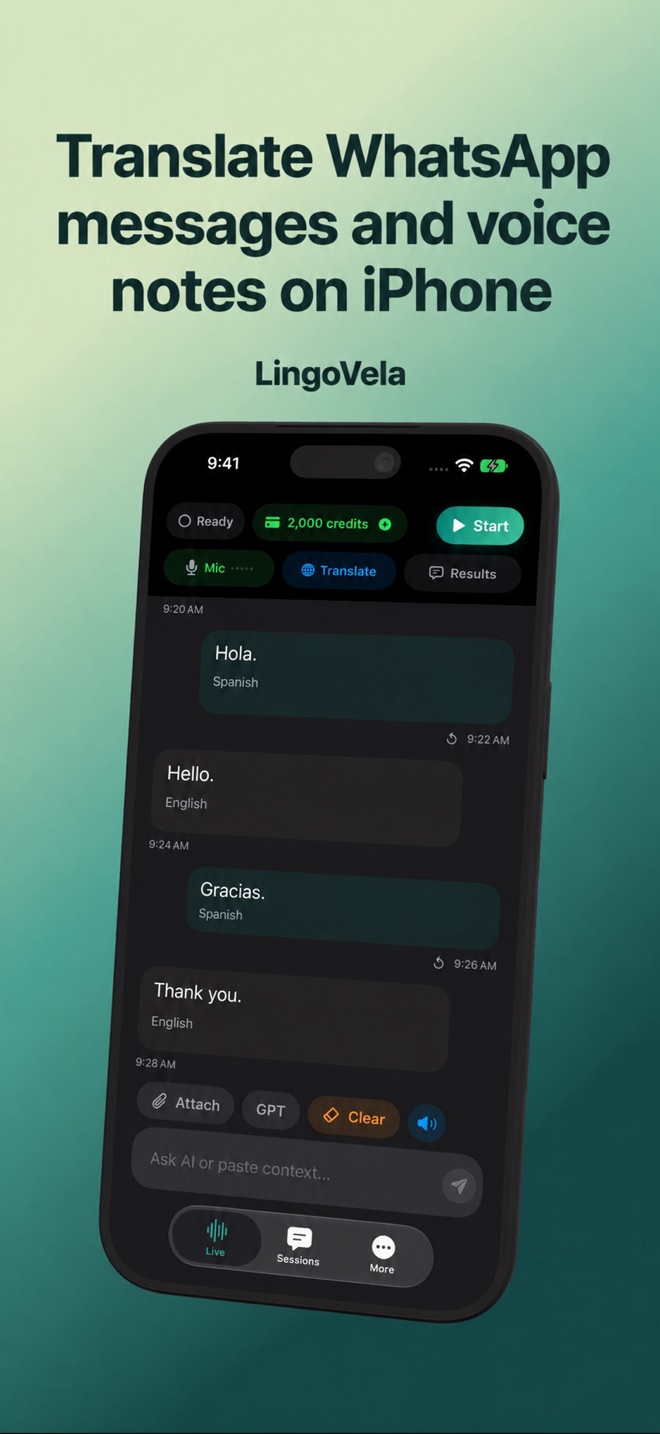
Translate WhatsApp messages and voice notes on iPhone
A written message, a voice-note transcript, an audio file and a live call need different workflows. Start with the material you actually have.
Try WhatsApp’s own text option first
Meta documents long-pressing a message and choosing Translate, with language selection and downloads. Check availability in your installed WhatsApp and language pair. Its Android whole-chat option is not evidence of the same control on iPhone.
If the available option meets your need, you can stay in the chat. Do not infer that translated text establishes voice-note translation or a translated live call.
Translate a selected passage without losing context
If you need another text workflow, copy only the permitted passage and necessary context rather than the entire private conversation.
- Identify the language being written and the language you want to read. Keep a preceding sentence if it establishes who or what the reply refers to.
- Paste the passage into the selected translation mode. Check that the copied text includes a negation, unit, date or qualification you need.
- Read the translation beside the original. Keep names, addresses and reference numbers available for comparison.
- If the meaning is uncertain, ask the sender to clarify the specific point. Repeatedly translating the same ambiguous fragment does not establish the intended meaning.
For a voice note, check the transcript before translating
WhatsApp documents Settings → Chats → Voice message transcripts, language selection, then a long press and Transcribe on a voice message. Check current language and device availability; the linked announcement is not a guarantee for every recording.
A transcript turns speech into text. Translation changes language. Listen to the relevant part and check the transcript where possible before using that text in a permitted translation workflow. An error in the recognised original can survive into a fluent translation.
Use a supported audio file when that route is available
If an allowed share or export action provides a file, check that it can be played and that your installed LingoVela mode supports it. This guide does not promise a universal WhatsApp export command or support for every codec.
- Start with a short ordinary sample you are allowed to process. Select the source and target languages and prepare the required resources.
- In LingoVela, use the available attachment/file control to select the actual file. Review what is staged before sending.
- On Device and PCC use compatible speech recognition before translating the resulting text. Check the displayed original and translation; an interface language does not establish audio-language support.
- For a long message or recognition error, use a shorter supported sample or ask for the important detail in writing. Do not invent missing words or treat a partial result as the full note.
Find which part failed
Treat missing input, wrong original text, wrong translation and missing output as different problems.
- If the file is not available, use a supported transcript/text route or ask the sender for a suitable version. A filename alone does not prove that an audio file was imported.
- If recognition fails, check file playback, the spoken language and the selected mode’s resources. A successful typed translation does not prove audio recognition works.
- For noisy or overlapping speech, replay the relevant portion and keep uncertainty visible. Ask the sender to write an unclear name, amount or instruction.
- If a cloud mode reports a connection, credit or consent problem, resolve that requirement. Downloaded local resources do not make every online feature work offline.
Write and review the reply before sending
Translation output is a draft until you check what you intend to send. LingoVela does not insert or send a WhatsApp reply for you.
- Write a short reply in a language you understand and select the recipient’s language. Make the intended person and action explicit.
- Check dates, time zone, amounts, units and whether you are asking or agreeing. Do not let an uncertain translation turn a question into a commitment.
- Copy only the reviewed result into the correct WhatsApp conversation and recipient. Re-read the draft there before sending it yourself.
- For an important detail, ask the recipient to confirm it through the agreed process. A back-translation can help spot differences but is not independent proof of correctness.
A private chat and an external provider are different paths
WhatsApp’s protection of a chat does not describe what happens after you copy or export its content into another service. Check the selected mode, provider consent and the sender’s expectations before sharing real messages.
For workplace material, use the approved process. Keep only the context needed, review imported copies and use the relevant data/history controls when you no longer need them. Sharing a screenshot may reveal names or unrelated messages as well as the intended passage.
What LingoVela supports and what it does not
All LingoVela modes require an active subscription. On Device needs compatible prepared recognition, translation and any required voice resources and uses no AI credits. OpenAI · Online and Private Cloud Compute need internet, credits and the relevant provider consent; availability depends on mode and device.
LingoVela does not automatically read all WhatsApp chats, replace messages inside WhatsApp or promise a floating translation window over it. A supported attachment is not an advertised live-call integration or internal-audio capture. Use the separate phone-call guide for that requirement.
Is a WhatsApp voice-note transcript already a translation?
Not necessarily. It writes recognised speech as text. Check the language and original meaning, then use a permitted translation workflow if another language is needed.
Can LingoVela read my entire WhatsApp chat automatically?
No such integration is promised. You choose the supported text or file to provide; copying one passage does not give it automatic access to the chat.
Why does typed text translate but my voice note fails?
Text translation and file recognition are separate steps. Check the actual file, spoken language, resources and mode; try a short supported sample.
Can these steps translate a live WhatsApp call?
No. A saved voice note and a live call are different inputs. This guide does not establish direct call translation or a background audio connection.