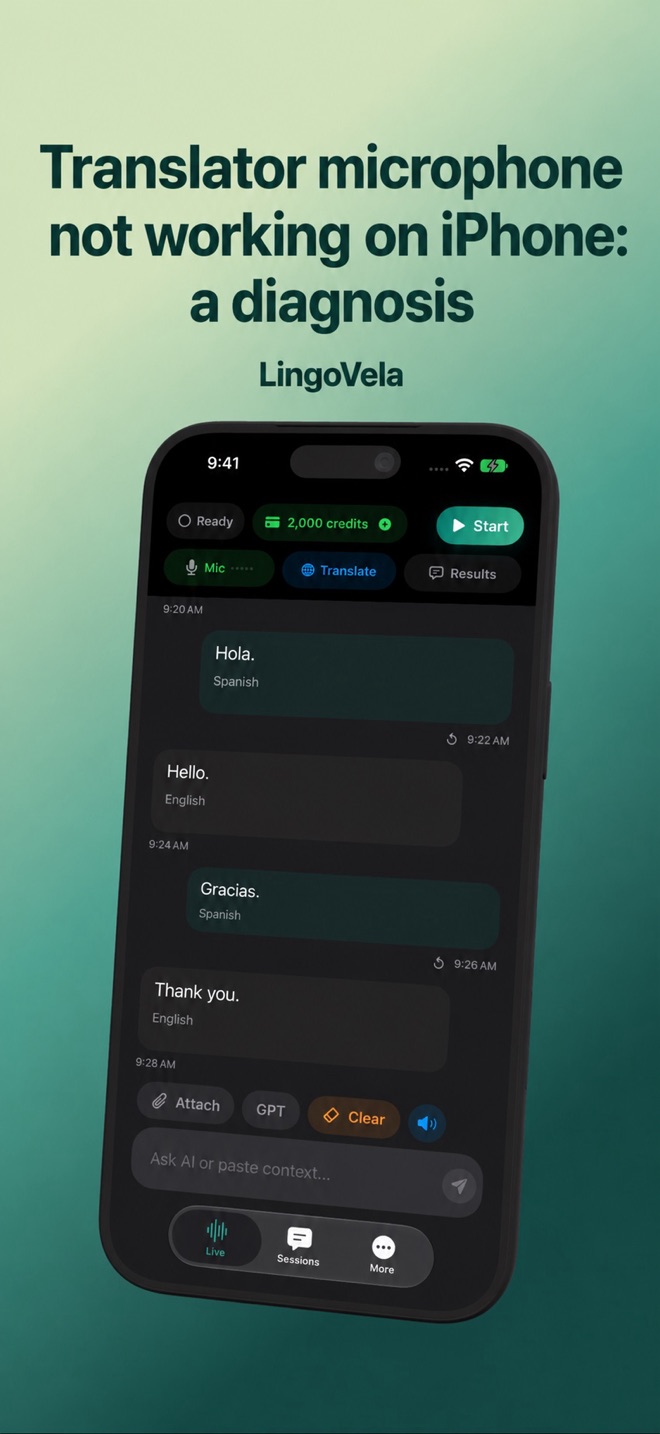
Translator microphone not working on iPhone: a diagnosis
First identify whether the app hears speech. If the input text is empty, changing the translation wording will not repair the capture stage.
Start with one clean sentence
End the current session and start a fresh one in the intended mode. Say a harmless sentence close to the phone. Look for input activity and recognised words before waiting for translated speech.
Check permission and route
In iPhone Settings, inspect LingoVela’s microphone permission. If a headset is connected, verify which microphone it uses. Disconnect that accessory for a comparison. Avoid running another app that is actively recording. Do not reinstall the translator or erase data as the first troubleshooting step.
Compare a phone-only recording before changing the translator
With the headset disconnected, make a short Voice Memos recording using harmless invented words and play it back. Apple recommends this recording check when diagnosing whether people can hear you. If that recording is also unclear, the translator alone is unlikely to explain the problem. Follow Apple’s microphone troubleshooting rather than repeatedly changing translation modes.
If the phone-only recording is clear, return to the translator and repeat the same short sentence without the headset. Reconnect the accessory and repeat once more. Note which change makes the input disappear. This comparison narrows the problem; it does not by itself identify a faulty component.
Distinguish permission, capture and a missing spoken reply
Apple’s current app-specific permission path is Settings > Privacy & Security > Microphone. Make sure the affected app is enabled. If it has access but still cannot record, or is not listed, Apple directs you to the app developer.
Watch the recognised input as well as the sound you hear. Clear input text with a silent translated reply is a different symptom from an empty input. Follow the spoken-answer guide for the former, and include the tested audio route in your report for the latter. A working typed translation does not prove that speech capture or a downloaded recognition asset is ready.
Check the selected provider
For On Device and PCC, check speech-language readiness and any pending asset download. For OpenAI · Online, check connectivity and credit balance. If typed text translates but microphone input remains blank, the likely fault is earlier than the translation response.
Send a useful support report
Include the app version, iPhone or iPad model, OS version, mode, language pair, whether input activity moves and whether typed text works. Do not send a private conversation recording unless support specifically needs it and everyone has agreed.
My earbuds play music. Why is the translator not hearing the other person?
Music playback tests output. Check the translator’s microphone permission, the active input route and the other speaker’s actual position. Compare with the headset disconnected.
Where is an iPhone app’s microphone permission?
Apple’s current instructions use Settings > Privacy & Security > Microphone. Enable the affected app. If it is missing or still fails with permission, contact its developer.
Does translated text with no voice mean the microphone is broken?
Not by itself. If recognised input and translated text appear, investigate playback and the destination device separately from capture. Use the no-spoken-answer guide.
Should I reinstall LingoVela before reporting a microphone problem?
Start with permission, a short phone-only recording and an accessory comparison. Preserve your data while gathering the app version, language pair, mode and the point at which input fails.