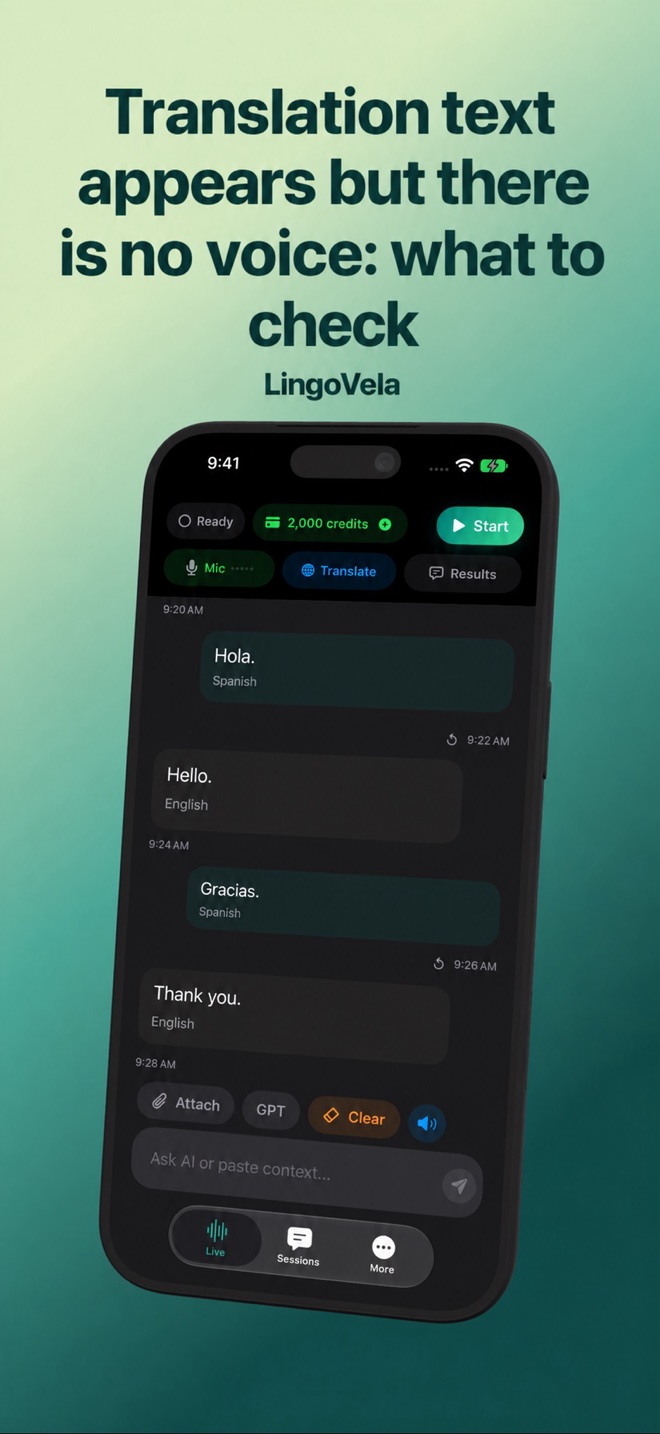
Translation text appears but there is no voice: what to check
If translated text appears, the app has completed a different part of the job from speaking it aloud. Treat playback as a separate check.
Check the output controls
Enable spoken translations or spoken replies in the app. Review the selected voice where available. Use a short translation, raise media volume while it should be playing, and inspect Bluetooth or headphone routing.
Decide which stage failed
No recognised input suggests capture or speech recognition. Recognised input but no translated text suggests language, access or provider trouble. Translated text with no sound suggests playback settings, route or voice availability. This distinction makes a support report much more useful than “nothing works.”
Compare a simpler route
End the session and try the phone’s own speaker without a connected accessory. Do not run two simultaneous translator sessions beside each other: one device can hear the other’s output and confuse this test.
Record the context
Note the app and OS versions, mode, pair, selected voice and connected accessories. Check whether a newly typed sentence also remains silent. Keep private content out of screenshots sent to support.