Translation keyboard on iPhone: three ways to translate a message
If you want to write a message in another language, first decide where the translation should happen. A keyboard extension, the iOS text-selection menu and a separate translator are different workflows.
Use the iOS selected-text option when it is available
Apple documents translation of selected text in apps such as Notes, Mail and supported third-party apps. Select the words, choose Translate and check the source and target languages. The menu may expose additional options, including replacing editable text with a translation, depending on the app and supported languages.
This is not evidence that every chat field, language or translation provider exposes the same controls. Try it with a harmless draft before depending on it for an ongoing exchange. Apple’s selected-text workflow is separate from an advertised LingoVela keyboard extension.
Use a translation keyboard when you specifically need that workflow
iTranslate publishes a separate keyboard-extension setup and activation guide. It describes selecting its keyboard from the keyboard switcher and enabling the extension in Settings. Check the developer and the current feature requirements for the actual keyboard you install.
Apple’s developer documentation explains that Full Access changes what a custom keyboard can do, including network access and use of a shared container. That permission alone does not prove that a translation is local or that content is being uploaded. Read the provider’s explanation of its processing before deciding to grant access. This article does not require changing any keyboard permission.
Copy a short draft into a separate translator
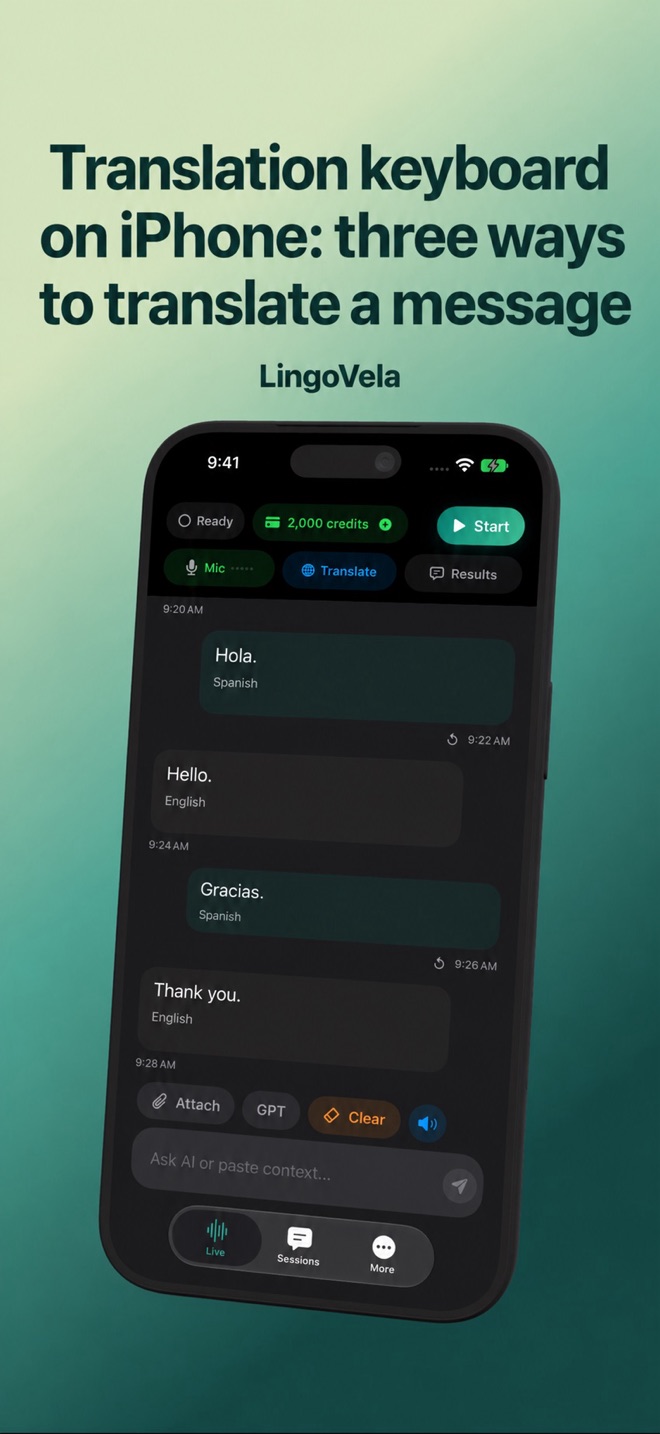
LingoVela can be used for supported typed translation in its selected mode. That means deliberately bringing the text into the app; it does not mean LingoVela automatically reads another app’s chat or replaces the keyboard.
- Write one short message and keep the original draft.
- Copy only the text needed for translation, with enough context to explain an unclear pronoun or reference.
- Choose the source and target languages in the translator and review the output.
- Check names, dates, prices and any negative such as “not” before using the result.
- Return to the message, review the recipient and send only when the wording is what you intend.
Check the other person’s reply separately
A keyboard that helps compose a message does not automatically translate an incoming voice note, a screenshot or a live call. Identify the input you actually have and use the relevant supported workflow. Keep the original beside the translation when a detail needs confirmation.
If your priority is a face-to-face spoken exchange, compare microphone recognition and spoken playback rather than choosing solely for keyboard convenience. A polished written answer is not a test of the audio path.
Where LingoVela fits
We are LingoVela’s developer. This is a workflow guide, not a measured ranking of keyboards. We do not advertise a LingoVela keyboard extension, automatic WhatsApp access or internal call-audio capture.
All LingoVela translation modes require an active subscription. On Device needs compatible prepared language and speech assets and uses no AI credits. Online modes require internet, credits and the relevant consent. The language available in one provider or input method need not be available in another.
Is selected-text translation the same as a translation keyboard?
No. The iOS text-selection menu acts on selected text where supported. A third-party keyboard is an extension you select as your input keyboard. Copying text into a separate translator is another workflow.
Does this guide enable a LingoVela keyboard?
No. It explains the choices and a deliberate copy-and-translate workflow. It does not claim that LingoVela provides a keyboard extension.