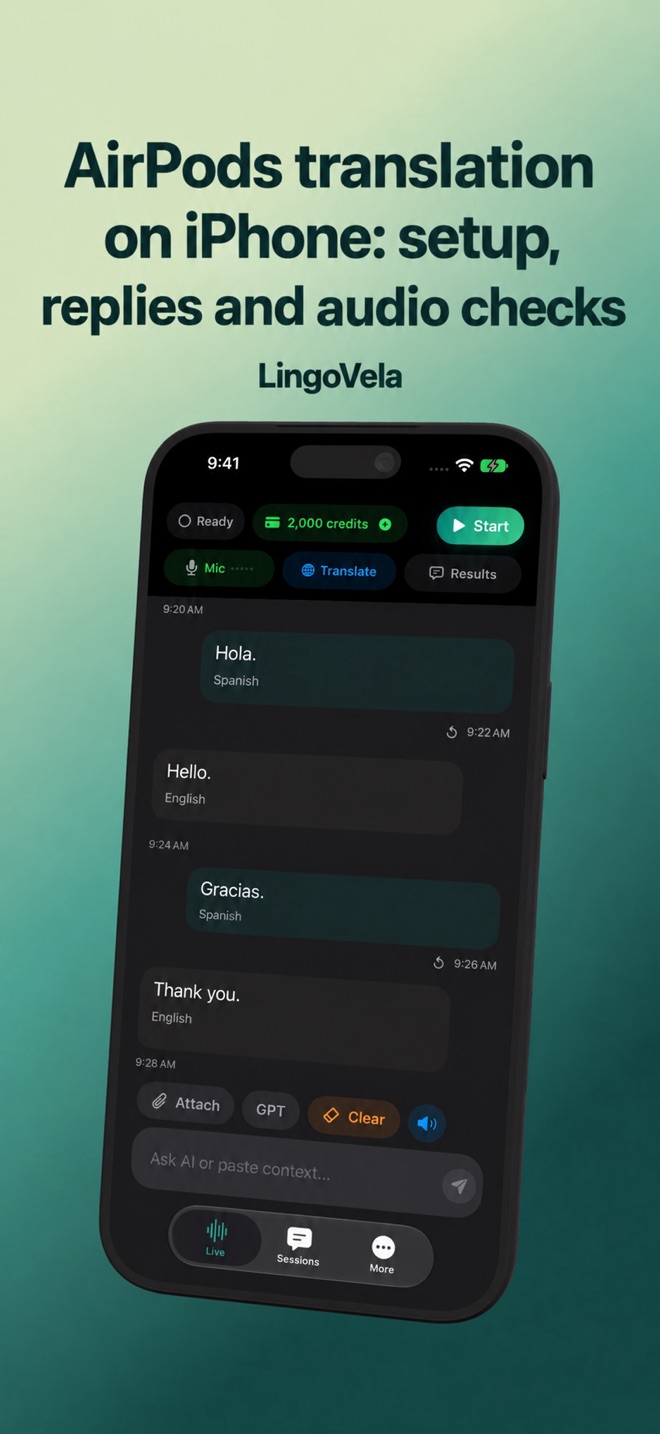
AirPods translation on iPhone: setup, replies and audio checks
Start with the feature you intend to use. Hearing a translation in your earbuds and completing a conversation in both directions are different checks.
Choose the feature before changing settings
Apple’s dedicated feature has its own hardware, software, language and region requirements. Check the current checklist: ordinary Bluetooth pairing is not proof of compatibility.
A third-party translator playing through AirPods is a different workflow. Decide whether you need private listening, a reply the other person can understand, or translation inside a phone call. These are separate tasks.
Check the complete exchange
For a conversation across a table, decide how the person without headphones will receive your reply. Apple documents a transcript or playback through the iPhone speaker for this. Do not test only what reaches your own ear.
Before using either approach in a queue or appointment, try a question and an answer. Check whose speech appears as the original text and whether the intended listener can hear or read the result. A successful first sentence does not prove that the reverse direction works.
Use the current Apple setup instructions
For Apple’s feature, follow the linked AirPods Live Translation guide rather than a third-party app’s controls. Prepare the required language models and test your pair. If the expected option is absent, check the requirements before buying an unrelated app subscription.
LingoVela is not advertised as Apple’s AirPods Live Translation integration. It translates with its selected provider and current iOS audio route. Pairing an accessory does not by itself add separate-language earbud sharing, call translation or a guaranteed hands-free microphone setup.
Compare a separate headphone option
Google documents iPhone and iPad live translation with headphones, including Listening, Conversation and Text only modes. Text only deliberately produces no audio. Check the selected mode before treating silent output as a failed translation.
This is Google’s own workflow, not Apple’s dedicated AirPods feature or a LingoVela integration. Compare your exact language pair and how the reply reaches the other person. No fastest-app or accuracy winner is implied by the presence of a headphone mode.
If text appears but you hear nothing
Separate the output problem from the translation problem. Use harmless test content and change one thing at a time.
- Play ordinary audio and confirm that it reaches the intended headphones on the intended phone.
- Check the playback control and volume in the translation app.
- Try the same short exchange without the accessory and compare what changes.
- Reconnect the accessory, then test both the incoming speech and the reply again.
If the microphone hears the wrong person
Read the recognised source words before judging the translation. Check the active input route, microphone permission and the distance from each speaker. Test the phone positioned near the intended speaker rather than assuming that private headphone playback also means reliable capture across a table.
Move away from competing voices and repeat a short sentence. If the app hears its own playback, lower the speaker volume or use headphones and check again. These are diagnostic steps, not a measured accessory compatibility or echo-cancellation guarantee.
Test offline without disconnecting the earbuds
Bluetooth connects the accessory; it is not the internet connection used by an online translator. For an offline test, turn on airplane mode, explicitly turn Wi-Fi off, and keep or re-enable Bluetooth so the earbuds remain connected. Verify the connection before interpreting silence as a model failure.
In LingoVela, select a supported prepared On Device pair and test recognition, translation and spoken output in both directions. All modes require an active subscription. On Device uses no AI credits; OpenAI · Online and Private Cloud Compute remain internet modes with credits and consent requirements.
Follow the software path, not just the earbuds
A common speech-translation workflow takes microphone input, produces recognised source text and a translation, then synthesises spoken output. Microsoft documents this pattern for its Speech service. That is one architecture, not a claim that every earbud or LingoVela mode uses identical stages.
Ask where the selected product does its work: in the accessory, in a phone app or through an online service. If source text is shown, check it before judging the translated answer. A correct translation that is never played is a different failure from speech that was captured incorrectly.
A concrete example of phone and app dependency
Timekettle’s WT2 Edge/W3 page says it needs a phone with the Timekettle app. It describes separate online and offline versions with limited downloadable offline language support.
Check the actual model and offer before purchase; do not generalise that example to every device sold as translation earbuds. Keep the required phone, app, language resources and charged components together when planning the workflow.
Compare the actual workflow before buying
First test the headphones and phone you already own. If considering another app or dedicated translator earbuds, check the required app, plan, language pair, internet access and firmware separately. A language count or Bluetooth logo does not establish the experience you need.
Compare the whole exchange and its total requirements, not just the price of the earbuds. Check any app plan or language-pack purchase, what must be charged and whether both people can use the reply. If you also need to read a menu or keep written details, verify the companion app’s actual features rather than assuming the hardware includes or excludes them.
There is no measured AirPods speed or accuracy ranking here. This guide does not claim that LingoVela translates every video, meeting or call routed through headphones. Use the instructions for the specific task and verify important names, numbers and destinations.
Does connecting AirPods turn on Apple Live Translation in every app?
No. Headphone playback and Apple’s dedicated translation feature have different requirements and controls.
Should Bluetooth be off when I test offline translation?
Keep it on for connected earbuds while disabling the internet connections. Otherwise the test also removes the audio accessory.
Do both people automatically hear their own language through one pair?
Do not assume so. Test the exact app and audio setup, including how the other person receives your reply.
Can I leave the phone behind with dedicated translation earbuds?
Verify the exact manufacturer requirements first: identify the required app, processing location and offline preparation. A wireless audio link alone does not establish a standalone translator.