Translate Zoom, Teams and Google Meet: captions or spoken audio?
Choose the output first: words to read, translated speech to hear, a human interpreter or a record after the meeting. Each needs a different setup.
Choose the output before choosing an app
Same-language captions transcribe speech; translated captions change its language. Spoken translation is audio, while a human interpreter is a separate service. A saved transcript or summary is another output again. Write down who must read or hear which language, and whether they need to reply. A feature name alone does not answer these questions.
Google Meet: captions and speech are separate
Translated captions require an eligible Workspace edition. Select the meeting language and translated caption language in caption settings. Check the linked requirements for current access.
- Speech Translation is separate: eligible access, administrator settings and participant permission matter. It uses one language pair per meeting; check supported devices and languages before inviting participants.
Microsoft Teams: check organiser and listener access
For translated captions, an eligible organiser licence can cover participants; an individual eligible licence covers that participant. Check Teams Premium or Copilot access with your administrator.
- Interpreter provides spoken translation. Anonymous and guest users cannot use it; verified users from other organisations need eligible Copilot access. Its translated speech is absent from meeting recordings.
Zoom: speaking language is not the translation language
Translated captions depend on the host’s entitlement and enabled settings. Participants select from permitted language pairs. Changing only the speaking language changes transcription, not translation.
- Voice translator is a separate spoken-output feature with Live Translation add-on or ZoomMate access and account/admin settings. Do not infer spoken translation from a captions entitlement.
A meeting bot is another workflow
DeepL Voice connects through a meeting bot that must be admitted. Its browser view provides subtitles; translated speech requires its desktop app and an eligible Voice plan. Check the linked product requirements.
- Before admitting any tool, agree who authorises it, where content is processed and what is retained. No installation does not mean no company approval is needed.
- Use the organisation’s approved process. A personal phone or browser does not make otherwise unauthorised handling acceptable.
Run a pre-meeting test with the actual participants
Use an approved sample, not confidential material, and the account roles, apps and audio devices planned for the meeting. This is a proposed checklist, not a claim that we tested every platform or language.
- Ask the organiser to confirm the meeting type, eligible access, enabled features and permitted content handling. Test a guest separately from a signed-in colleague.
- Choose the real source and target languages. One person says a short question, then a name, number and negation; the other reports exactly what appeared or played.
- Reverse the direction. Check whose device hears the translation, whether others hear it too, and whether headphones change the audio route.
- Try a screen share and a correction. Confirm that captions remain readable and that a revised result is distinguishable from the original.
- Agree a fallback: slower turns, a written clarification or appropriate human language assistance. Retest after changing the client, account or audio device.
Second-device translation and LingoVela’s boundary
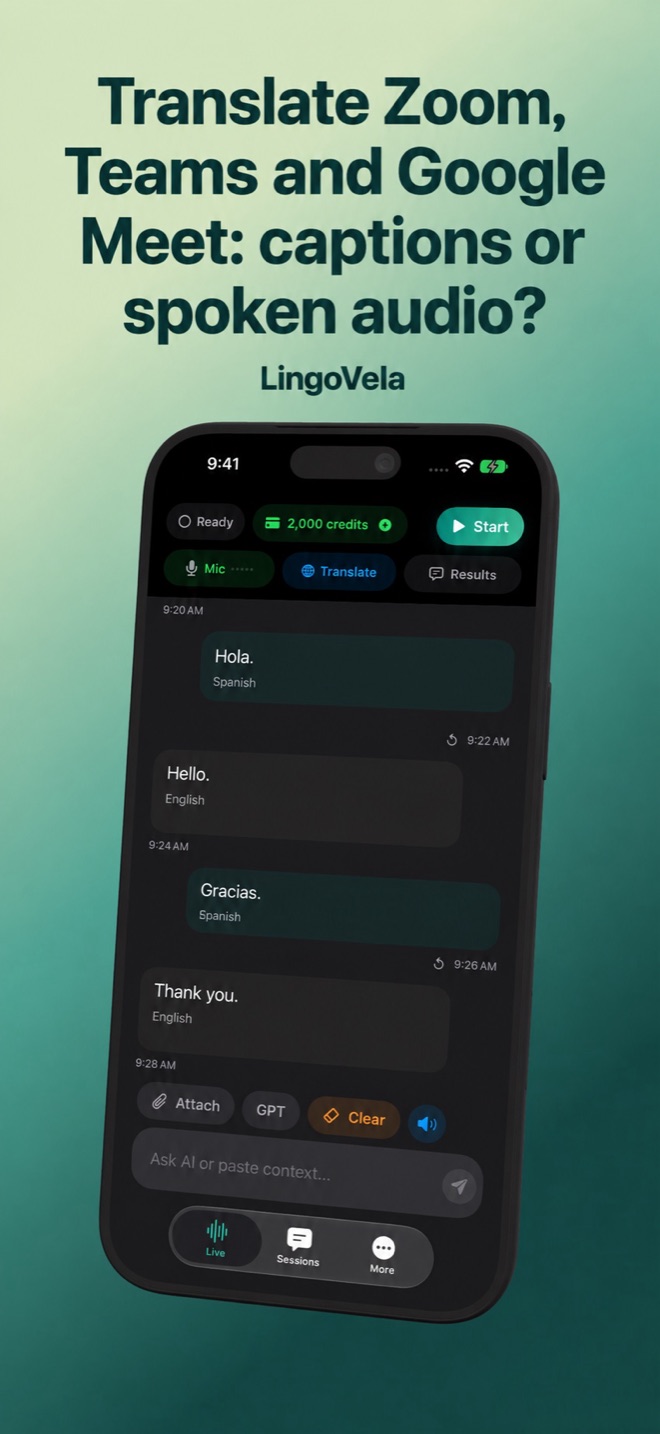
LingoVela is a phone and tablet translation app; it is not advertised as a Meet, Teams or Zoom integration. Starting its microphone does not establish access to another app’s internal call audio. A second device listening to a speaker may miss quiet voices or introduce echo. Try that setup only with authorisation and agreement from the people involved.
- All LingoVela translation modes require an active subscription. On Device needs compatible prepared assets and uses no AI credits. OpenAI · Online and Private Cloud Compute require internet, credits and the relevant provider consent.
- Choose LingoVela for a checked phone/tablet exchange. For a platform meeting, first establish whether its approved native feature or another authorised service meets the required output.
Test continuity, not just a good opening sentence
For a long session, separate incorrect meaning from missing output. A connected indicator or moving microphone meter does not prove that translation is still arriving. Test an authorised sample for the duration and pauses you actually need; this guide does not establish an endurance limit or guarantee that accuracy stays constant.
- Choose short reference exchanges with meanings you can check, including a number, a negation and a term used in your work. Repeat comparable checks near the beginning, middle and end without introducing private material.
- Note whether each expected exchange produced a result, whether the meaning was correct and whether the speaker was identifiable. Record a missing phrase separately from a slow or wrong translation; do not reduce them to one accuracy score.
- Include a normal pause and resumption, a speaker change and your planned screen share. Check output after each. If the audio route or connection changes, pause the discussion and verify the new route before relying on it.
- If output stops, ask for the missed point again after restoring the approved setup. Confirm the repeated content and note the failure point. An apparently active session is not a substitute for that check.
Run a small team pilot before wider rollout
Name a person to organise the trial and agree in advance what success means for the task. This is a practical evaluation plan, not a claim of measured savings, corporate certification or equal performance across meeting types.
- Try the meeting shapes the team really uses: a one-to-one exchange, a small discussion with speaker changes and a presentation with questions. Do not assume a successful single-speaker demo covers all three.
- Use an approved list of ordinary domain terms and reference statements. Let a person who understands both languages check meaning, omissions and corrections; if nobody can check the target language, the result remains unverified.
- Write down the platform/client, account role, languages, audio devices, approximate duration and observed failure. Keep only the authorised test record; no confidential recording is needed for this checklist.
- Decide whether the recipient could follow and reply, whether important details were correctly confirmed and whether the fallback worked. Fix the concrete failure and repeat the affected scenario before expanding use. Keep qualified human assistance available when the task requires it.
Translate a meeting into notes: decide which record you need
A transcript aims to preserve what was said. A translation changes its language, while minutes select decisions, actions and unresolved points. Decide which record the team needs before choosing a feature. Translating a summary does not recover an omitted condition from the original discussion.
Google Meet’s Take notes for me is a separate eligible-plan feature that creates notes in Google Docs. Its current help supports one meeting language at a time, so do not infer mixed-language note capture from a translated-captions feature.
Microsoft documents recap separately from live captions and transcripts. Translated recap depends on the multilingual meeting settings, and intelligent recap has its own access conditions. Check the saved record and who can open it after the meeting, rather than assuming that the language seen live is automatically the record everyone receives.
Spoken’s own notes guide describes a saved transcript, requested AI enhancement and then a separate translation of the minutes. That is a documented maker workflow, not an independently tested capability or a claim that LingoVela provides meeting summaries.
Check understanding during and after a long meeting
Schedule a short check after a topic or speaker change. If a phrase is missing, pause and ask for it again rather than guessing from a fluent result. Track the actual omission, direction and audio setup when reporting a problem; an unrelated vendor speed benchmark cannot diagnose it. Confirm decisions, responsible people and deadlines in the official written follow-up. Separately verify whether captions, translated audio or transcripts are saved, who can access them and how they are deleted.
Use an ordinary trial discussion to check the record before relying on a real meeting. For example, propose one delivery day, correct it later and leave another suggestion undecided. The useful result distinguishes the final agreement from the abandoned plan; fluent wording alone does not establish that distinction.
- Check the original transcript or agreed reference for the final decision and any attached condition. If the source is unclear, keep the point unresolved rather than filling it from the summary.
- Verify the translated wording with someone who understands the relevant languages. Keep names, dates, quantities and negations visible so participants can confirm the same detail.
- Ask the people concerned to confirm the action owner and deadline. Label a suggestion or open question separately from an agreed commitment.
- Check the actual saved files, access and deletion controls for each output you retain. A transcript, translated record and AI recap can be separate artifacts; deleting one should not be assumed to remove every other record.
Does turning on captions translate the meeting for everyone?
Not necessarily. Captions, translated captions and spoken translation are different outputs. Test what each participant reads or hears, including guests, with the actual account settings.
Can I use a phone translator instead of installing a meeting integration?
A microphone setup has a different audio path. It needs authorisation, participant agreement and an actual sound test; absence of installation does not establish permission or reliable capture.
Will the recording contain the translation I heard?
Do not assume this. Live translation and saved records are separate. Check the chosen feature’s recording and retention rules, then confirm important decisions in the official written follow-up.
Does a successful short demo prove translation will work for a long team meeting?
No. Test continuity and meaning over the duration, speaker changes and audio setup you need. Keep missing output distinct from incorrect translation and agree a fallback before wider use. No endurance benchmark for LingoVela is claimed here.
Are translated captions, a transcript and meeting minutes the same record?
No. Captions are live output, a transcript preserves spoken content, and minutes condense selected points. Check the saved output and its language separately, then confirm decisions and conditions against the source.
Can I assume a notes feature handles everyone switching languages?
No. Check the feature’s current language and meeting requirements. Google Meet’s notes help currently specifies one meeting language at a time; translated captions alone do not establish multilingual note capture.
Does LingoVela generate translated minutes or join my online meeting?
Those capabilities are not claimed here. LingoVela is described as an iPhone and iPad translation app, separate from a meeting integration or the documented notes workflows of other providers.