Samsung Interpreter and Pixel Buds on iPhone? Setup and limits
Bluetooth audio pairing and a manufacturer’s translation feature are different checks. Identify the phone, app and intended result before buying earbuds or following a setup video.
Identify the feature, not just the word Interpreter
Write down the exact phone, software, earbuds and app. An in-person exchange, listening to a talk and translating a phone call are different jobs. Ask which person hears or reads the result and where their microphone input comes from. A video for a similarly named tool does not establish support on your device.
Start with the manufacturer’s current page for that feature and region. Do not assume that every Android device has the same Interpreter app, or that installing an earbud manager adds a missing system feature.
Samsung: start with the phone’s documented interface
Compare the controls available on your phone with the linked manufacturer walkthrough before trying the sequence below.
- Open Quick settings > Interpreter.
- Select both languages and grant microphone access if requested.
- Turn the upper view toward the other person, then use your microphone button.
Galaxy Buds: check both audio directions
Samsung’s Buds3-series walkthrough uses Interpreter on the connected phone: translated speech reaches the earbuds, and the phone speaker plays the reply.
That is a documented configuration, not proof that any paired headset gets the same controls. Do not hand over an earbud or follow a speculative Labs menu unless the instructions for your actual product specify it. Test with the other person in their normal position, rather than checking only what you hear.
Pixel Buds: use the current prerequisites
Google currently specifies compatible Android, Gemini as default assistant with Live Translate permission, updated Google/Translate apps and internet. It distinguishes listening from conversation: incoming translation uses the earbuds; the reply uses the phone.
Follow the current linked setup for your exact equipment. An old Assistant demonstration or successful Bluetooth pairing alone does not establish access to this feature. Keep a record of the actual setup when asking support about a missing control.
Old Google Assistant instructions need a fresh check
Google’s Assistant changes page lists Interpreter mode among features being withdrawn. Another Gemini help page still refers users to Assistant for that mode. These pages do not establish one consistent setup for every device.
Use the current product-specific instructions and verify the controls you actually have. Do not change assistants repeatedly, install an unofficial package or buy new earbuds merely because an older guide says “no download needed.” A single translated phrase also does not prove continuous two-way conversation support.
Check offline translation separately from downloaded text packs
Samsung documents face-to-face Interpreter use without Wi-Fi or mobile data. Confirm the required language resources and exact device configuration before relying on it.
A downloaded language file in one app does not prove that a different assistant or earbud feature will work offline. Initial preparation and the later disconnected test are separate tasks. This guide makes no offline promise for every Galaxy model or headset.
- Prepare the intended languages using the chosen product’s instructions while connected. Wait for preparation to finish.
- Before travelling, disconnect networking for a test, say a short phrase in each direction and verify both the visible result and the expected audio output.
- Restore connectivity after testing. If a required output failed, arrange a checked fallback rather than assuming the download proves readiness.
Diagnose the missing stage before resetting anything
Separate voice input, recognised words, translated meaning and playback. A connected headset does not prove all four are working. The following is a diagnostic approach, not a list of hidden manufacturer settings or a claim of device testing.
- Confirm that the exact model, software and feature are supported. If the control is absent, consult the vendor’s current requirements rather than copying a menu from another model.
- If no words appear, check the microphone permission and intended input route. Try a short phrase in a quiet place.
- If original words appear but no translation does, check the selected language pair, required resources and connection for that mode.
- If translated text appears but sound is missing, check volume and playback destination. Repeat with the phone speaker, then the intended headset, if that product supports both.
- If only one person receives the result, test the reverse direction and screen visibility. Keep data and settings intact while isolating the failure; do not start by deleting app storage.
If your main phone is an iPhone
Choose an iPhone-supported workflow first; do not assume Android-specific Interpreter controls transfer with Bluetooth pairing. Compare the actual source and target languages, preparation, output and subscription terms for the tool you choose.
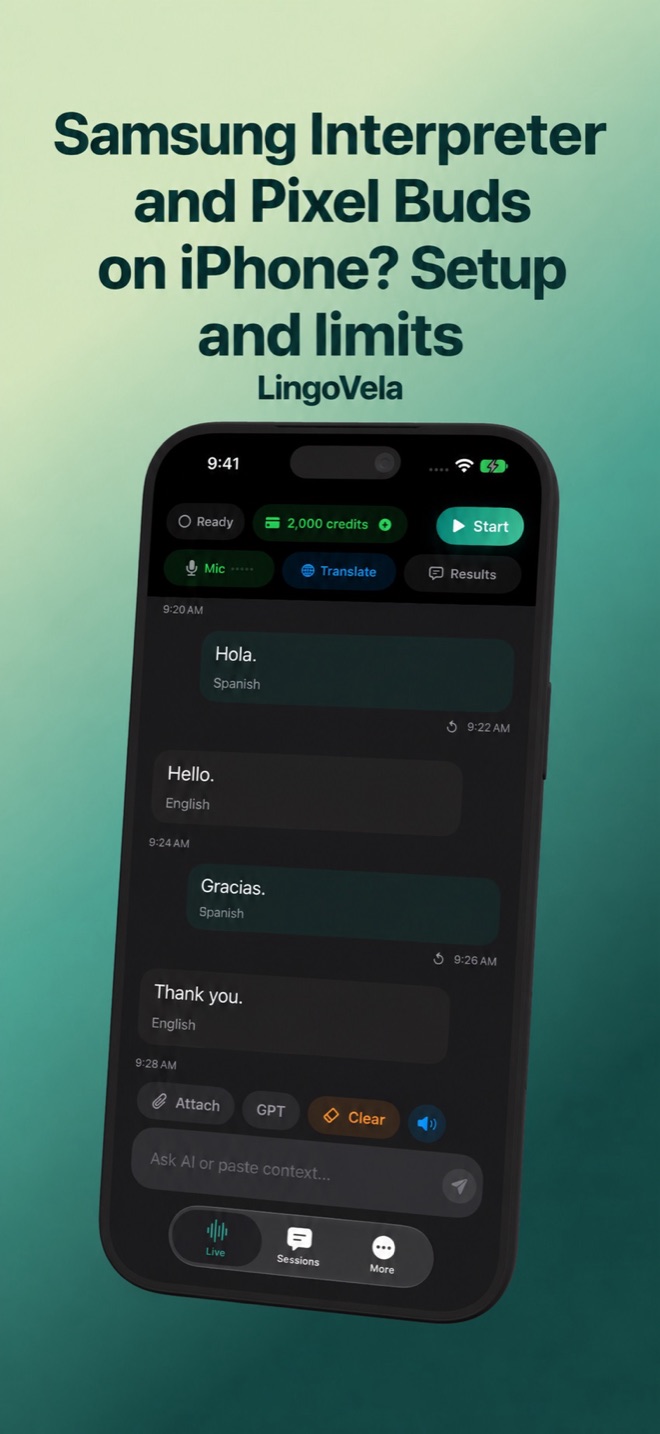
LingoVela supplies its own conversation screen and translation modes on iPhone and iPad. It is not Samsung Interpreter, a Pixel Buds Android integration or an Android app. No third-party headset gesture, split-earbud or internal-call capture feature is promised.
All LingoVela translation modes require an active subscription. On Device needs compatible prepared resources and uses no AI credits; OpenAI · Online and Private Cloud Compute use internet, credits and the relevant provider consent. Test an ordinary shared-phone exchange before adding complicated audio routing.
Does pairing Galaxy Buds or Pixel Buds to iPhone enable their Android translation features?
Pairing establishes an audio connection, not feature compatibility. Check the exact manufacturer workflow and choose an iPhone-supported translation tool. LingoVela does not recreate either manufacturer’s Android integration.
Why can I see translated text but hear nothing?
That narrows the investigation to playback, volume and the intended recipient, rather than proving a language-model failure. Check the actual output route and repeat a short two-way test using only destinations supported by the chosen product.
Does downloading a language pack guarantee offline voice translation?
No. Preparation belongs to a particular app and mode. Test both input and output in each direction while disconnected before relying on it. A text-only result does not verify spoken conversation.
Should I delete the app’s data if translation stops?
First identify which stage is failing: input, recognition, translation or playback. Note the versions and observed result, check the vendor’s instructions and preserve existing data while investigating.