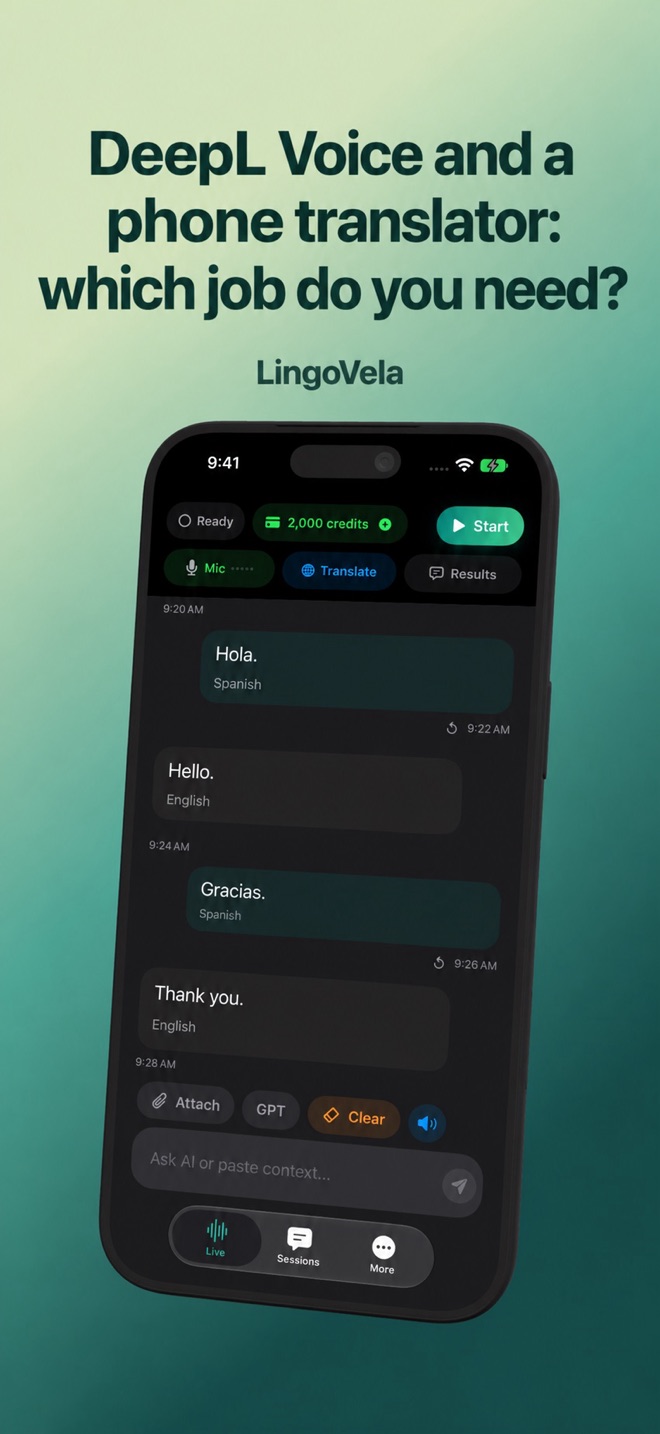
DeepL Voice and a phone translator: which job do you need?
First decide whether two people will share a phone, join a group on separate devices or translate an online meeting. Those workflows have different access, audio and record-keeping requirements. We publish this guide as LingoVela’s developer, with a commercial interest in the app.
Identify the DeepL product
DeepL’s help describes Voice for Conversations on web and mobile under eligible Voice plans. Do not assume the ordinary text translator purchase includes the same access, or assume that every Voice feature is a browser meeting integration.
Treat access as a check against your actual account: open the intended Voice product and confirm the available plan, languages and controls. A plan name, text-translation purchase or successful demo on someone else’s device does not establish what your organisation has enabled.
One-to-one conversation: check how speakers take turns
DeepL’s one-to-one guide describes choosing a language pair and starting or stopping the microphone beside the speaker’s language. It also documents an automatic speaker-detection control in supported app versions. These are separate ways of managing the exchange, so verify which one is active before comparing results.
Ask the other person to say one short sentence, then return a reply. Watch the recognised language and listen to the output on the intended speaker or headset. If a sentence goes missing, distinguish a microphone that never recorded it from an incorrect language choice or an inaudible translated voice. Change one setting at a time.
Group conversations are a different setup
DeepL separately documents group conversations on web and mobile. A host with eligible access shares a link or QR code; guests can join in a browser without their own app or license. The guide describes headsets and holding the microphone control while speaking. Check the current plan’s participant limit rather than assuming the same limit everywhere.
For a group trial, give each person an input language and confirm that each hears or reads the intended result. A useful check is whether participants know when their microphone is transmitting. LingoVela’s personal phone workflow is not advertised as this multi-device group service.
Prepare terminology before relying on a glossary
DeepL’s conversation help allows selection of an existing owned or shared glossary. It says creating or editing that glossary happens on the web rather than in the mobile app. Prepare it before the conversation, then verify that the intended glossary is selected in the conversation settings.
An original test list might contain a fictional product name, a unit and two easily confused terms. Speak them in full sentences, including a negation or correction. Ask a proficient speaker to check the result. A glossary selection is a configuration check, not proof that every occurrence will be translated correctly. This guide does not claim that LingoVela implements DeepL’s glossary feature.
Check the record you can actually share
DeepL documents sharing conversation transcripts from its mobile apps through the conversation preferences. Depending on the device and available share actions, the result can be copied or sent to another app; its iOS instructions also describe saving a text file. Access can depend on the app version and team settings.
Before promising someone meeting notes, open a sample export and inspect it. A conversation transcript is not automatically an agreed summary or confirmed action list. Keep proposed decisions separate from confirmed ones, and get permission before sharing another person’s words. Do not use screenshots or another messaging app to bypass an organisation’s export restriction.
For online meetings, verify the joining and listening path
DeepL’s meeting guide describes connecting a meeting with eligible access, admitting its bot and following the link shared in meeting chat. It distinguishes subtitles in a browser from translated speech through its desktop app with an eligible plan. The organisation must permit the required participant and chat access.
That meeting workflow differs from a group conversation link or two people sharing a phone. If your requirement is Zoom, Teams or Meet, trial the actual meeting service, host policy and participant devices. LingoVela is not advertised as a meeting bot or internal call-audio capture tool.
Compare LingoVela’s scope
LingoVela is a subscription translation app for iPhone and iPad with online and supported local provider choices. It is not advertised as a Zoom, Teams or Meet integration or a multi-device meeting service.
Its modes are OpenAI · Online, On Device and Private Cloud Compute. All require an active subscription. On Device uses no AI credits but needs compatible prepared assets; online modes need internet and credits. Check the actual language direction and device requirements. We have not independently established that LingoVela is faster, more accurate or more secure than DeepL.
Use a realistic trial
For a conversation, test the languages and how both people read or hear the result. For a meeting, test joining permissions, speaker changes and the actual meeting platform. A successful one-to-one phone translation cannot establish enterprise meeting suitability.
- Use fictional names and quantities. Try a question, a correction such as “six, not sixteen” and a product reference. Have a proficient speaker check the meaning.
- In a one-to-one trial, check a manual speaker change and any automatic detection option separately. Confirm who should speak next and where the translated voice plays.
- If terminology matters, prepare a small approved list and compare the important terms with it. Do not upload confidential product documents just to try a service.
- If you need a record, export a harmless sample and open it outside the translation app. Check whether it contains source text, translation and the context needed by its recipient.
- For a group or online meeting, repeat the trial with a second participant on the intended device. Test joining, microphone ownership, headphones and the loss of a connection rather than inferring these from a shared-phone demo.
Choose with your organisation
If the content is confidential, check procurement, provider and retention requirements before using any consumer app. This guide does not assert comparative security certification, benchmark performance or legal suitability.
DeepL documents team controls for transcript sharing, spoken output and the availability of some languages through third-party processing. Check the active policy with your administrator; a control that is absent or disabled may reflect policy rather than a broken microphone. We do not infer an organisation’s retention configuration from a public feature page.
Is DeepL Voice for Conversations only a one-to-one translator?
DeepL documents both one-to-one and group conversation workflows. Group sessions use a host invitation and participants’ own devices. Check your access and current plan limits rather than assuming a single-phone workflow covers the group feature.
Can I create a DeepL conversation glossary in the mobile app?
The linked conversation guide says to create or edit glossaries on the web, then select an owned or shared glossary for the conversation. Confirm that the intended glossary is active before testing terminology.
Does DeepL Voice always use the device’s text-to-speech voice?
Do not assume a single voice path. DeepL documents voice-to-voice output and team settings, with device or browser text-to-speech used in conversation fallback configurations. Check the actual mode, client and organisation policy.
Does a shared transcript prove a translated agreement is correct?
No. A transcript is a record to review, not proof of a correct interpretation or confirmed agreement. Check names, quantities, corrections and proposed decisions with the people involved.