Translate Spanish with AirPods: check the complete Apple setup
For Spanish–English conversation with AirPods, start with Apple’s own supported setup. Pairing headphones for music does not prove that Live Translation is ready.
Check Apple’s current requirements
Apple’s guide requires supported AirPods, current software and firmware, and a compatible Apple Intelligence-enabled iPhone. Its walkthrough specifically uses downloading Spanish and English as an example. Check the current guide for your hardware and region before buying or troubleshooting.
The language downloads belong to Apple’s workflow. They are not evidence that another app has prepared its own recognition and translation assets.
Prepare and test both directions
Follow the current Apple setup instructions rather than an old screenshot from another iOS release.
- Connect the supported AirPods and check Apple Intelligence and software readiness.
- Download both conversation languages in the documented Translation language controls.
- Open Translate, choose Live, and set the other person’s language and your listening language.
- Start a short permitted test and check the text on the phone as well as the audio.
- Reply and verify that the other person can read or hear the translated answer.
The other person still needs the reply
Apple documents showing the translation on the iPhone or playing it through the phone speaker. Test that part of the exchange as well as what arrives in your own ears.
Use a Spanish–English sample with a time, a name and a negative statement. The point is to verify the whole interaction, not just to hear fluent audio. Do not make a real booking until both people have confirmed the details.
How LingoVela is different
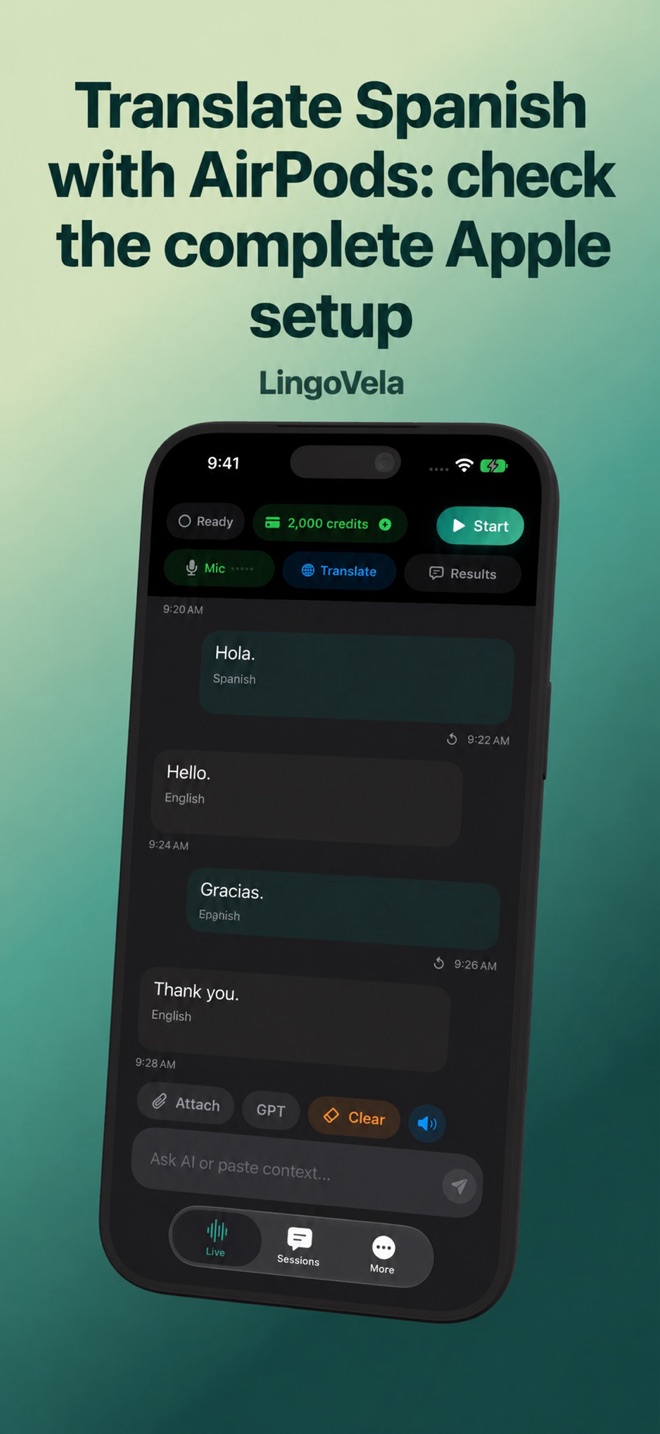
LingoVela has its own conversation screen, provider selection and subscription requirements. It does not replace Apple’s Translate controls or promise all of Apple’s AirPods gestures and integrations. A working headset audio route is not the same as native Apple Live Translation.
If you choose LingoVela, test speech input and playback in its selected mode separately. Its On Device workflow needs compatible prepared assets and uses no AI credits; online modes need connectivity and credits. Do not buy a second subscription simply to activate a feature that belongs to Apple’s documented setup.