LingoVela vs Zoom, Microsoft Teams & Google Meet translated captions
Holding an iPhone up to a laptop speaker during a Zoom call produces muddy recognition and gives remote attendees zero way to hear your translated reply unless you hold the phone back up to your laptop mic. For online video calls, platform-native translated captions (Zoom, Teams, Meet or DeepL Voice for Meetings) are the right architecture; LingoVela is purpose-built for in-person iPhone and iPad conversations.
1. Platform audio streams vs physical room microphones
Zoom, Microsoft Teams and Google Meet receive each remote participant’s clean, isolated microphone channel directly on the server—so they know exactly who spoke and can display translated subtitles per viewer without room echo.
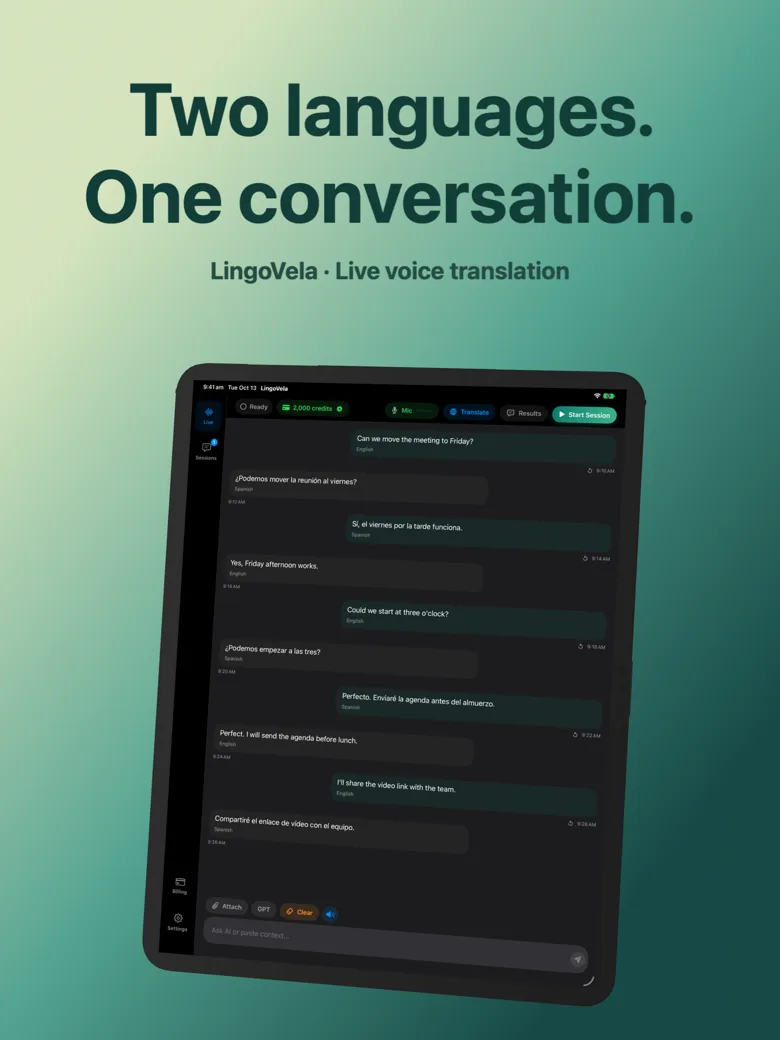
LingoVela captures live speech through your iPhone or iPad microphone for people physically together in the same space, speaking translations aloud and saving a local dual-language transcript.
| Capability | LingoVela: Live Translate | Zoom / Teams / Meet Captions | DeepL Voice for Meetings |
|---|---|---|---|
| In-person table or field conversation | Primary design (iPhone & iPad) | Awkward — requires everyone to join a video call | Requires separate Voice for Conversations app |
| Direct remote video-call audio tap | Not a meeting bot or virtual audio driver | Built directly into meeting audio stream | Integrates with Teams / Zoom meetings |
| Per-attendee language selection (5+ languages) | Two selected languages on one shared device | Supported on eligible paid/add-on plans | Supported per meeting participant |
| Works offline with zero internet | Yes — On-Device mode (0 credits, active sub) | Impossible (online video call) | Cloud-only |
2. Licensing surprises on video platforms vs transparent mobile billing
Translated captions in Zoom, Teams Premium and Google Meet Workspace editions often require specific host add-ons or enterprise tiers—meaning a guest invited to someone else’s free Zoom link cannot always turn translated captions on themselves.
| Factor | LingoVela | Platform Translated Captions (Zoom/Teams/Meet) |
|---|---|---|
| Who controls activation? | You, anytime on your iPhone/iPad | Often depends on meeting host’s paid license tier |
| Pricing | $9.99/mo individual App Store subscription | Paid host add-ons / Teams Premium / Workspace tiers |
| Account & corporate IT approval | None — anonymous device setup | Tied to work/meeting account & admin policies |
| Workplace data policy compliance | Verify employer policy before placing phone near laptop! | Governed by organization’s approved meeting contract |
3. Choosing the right workflow for remote vs in-person meetings
Match the tool to where the speakers are sitting—and always respect workplace confidentiality rules before placing a personal phone next to a work call.
| Meeting format | Recommended solution | Why |
|---|---|---|
| Scheduled remote client call on Teams, Zoom or Meet | Enable platform Translated Captions or human interpreter | Clean per-speaker audio channel and remote visibility for both sides |
| In-person factory walk, café meeting or site visit | LingoVela on iPhone or iPad | Portable, two-way spoken output + On-Device offline backup |
| High-stakes contract negotiation or board hearing | Qualified human business interpreter | Accountable domain terminology and turn management |
Can LingoVela join my Zoom or Teams call automatically?
No. LingoVela is an iPhone and iPad microphone/text app for two-way conversations, not a meeting bot or desktop audio plugin.
Can I place my iPhone next to my laptop speaker in an emergency?
Only for non-confidential material where workplace policy permits external devices—and remember the remote speaker still cannot hear LingoVela unless your laptop mic picks it up cleanly.
Does LingoVela work on iPad next to my notebook during in-person meetings?
Yes. iPadOS 26+ gives both seated participants a comfortable tabletop transcript.